Free Classroom Games (No Login) Teachers Can Trust
By Jangul Aslam · Published 2026-09-27

Every teacher knows the sign-in tax. You plan ten good minutes of practice, and the first six go on usernames, forgotten passwords, a student whose email "isn't working," and a free app that wants a parent's permission before it will load. Then an ad for a mobile game slides up in the middle of the activity, and half the room is suddenly more interested in that.
It doesn't have to work like that. Every game on iplay.free opens straight from a link in the browser. There are no student accounts, no logins, no ads, nothing to install and nothing to buy. You put a link on the board, students open it, and they're playing. That's the whole setup.
I'm Jangul, a dad who started building these games with my son Adiv, and it turned out schools were using them too. So this post is written for teachers: what the site actually does with student data, which games fit which subject, and how to use them in a lesson without any fuss.
What "no login" actually means here
"No login" is easy to say. Here is what sits behind it, so you can check it rather than take it on trust:
- No accounts of any kind. There is no sign-up, no email, no username, no chat, no comments, no messaging and no way to upload anything to us. (Slide Quest can turn a photo into a puzzle, but the picture stays in the browser and is never sent anywhere.) There is no way for a student to share anything about themselves through the site, with us or with anyone else.
- Nothing a student types is sent to us. Letters typed into the word games are kept only in that browser, as part of the saved game. Flag Guess, the one game with a free-text box, keeps only whether the answer was right.
- No advertising and no third-party trackers. No ad networks, nothing that follows students to other websites, and no in-game purchases.
- Saved games stay on the device. Progress and best scores live in the browser, not on our servers. Clearing the browser's data for the site removes them.
- Only counts and a random ID leave the device. When a game starts, the browser sends the game's name, a two-letter country code and a random ID it made up for itself. We add one to that game's play count and the country's total, and use the ID only to stop one browser inflating the numbers. If a student taps a game's heart, the ID is kept with that like, so the same browser can't like a game twice. No name, no email, no account.
- IP addresses aren't kept. Each one is turned into a scrambled code, used only to stop one machine flooding the counters, and deleted within two hours.
If your school has an approval process, the privacy page is the document to send to your IT or data-protection lead. It lists every item stored, where it lives, and the two companies that help run the site (one hosts it, one stores the play counts). It doesn't wave anything away, right down to the one session cookie that remembers which language you picked.
Games that fit the subject
With 36 games, the easiest way in is by subject. Every game has difficulty levels, so the same game can serve a mixed-ability class.
Spelling, vocabulary and reading
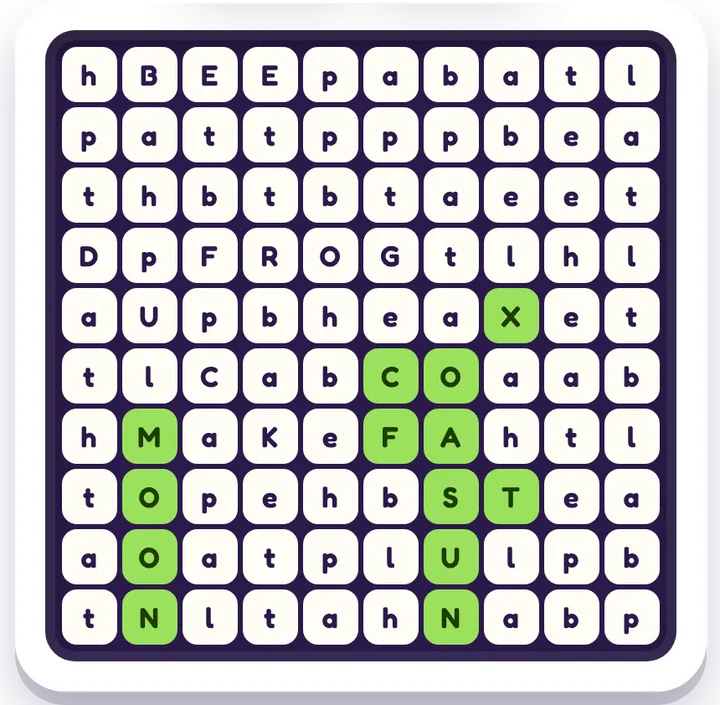
- Word Search (great from age 6) is visual scanning and spelling. Bigger grids hide more words, and the harder levels add diagonal and backwards ones.
- Word Guess (7+) is five-letter deduction in the Wordle style, with 4- and 6-letter versions for easier and harder rounds.
- Mini Crossword and Word Bee (8+) take on clues and vocabulary, and building words around a center letter.
- Connections (8+) asks students to sort 16 words into four hidden groups. It is superb for vocabulary and category thinking, and it makes a great whole-class puzzle on the projector.
All of them live in the word games hub.
Math and number sense
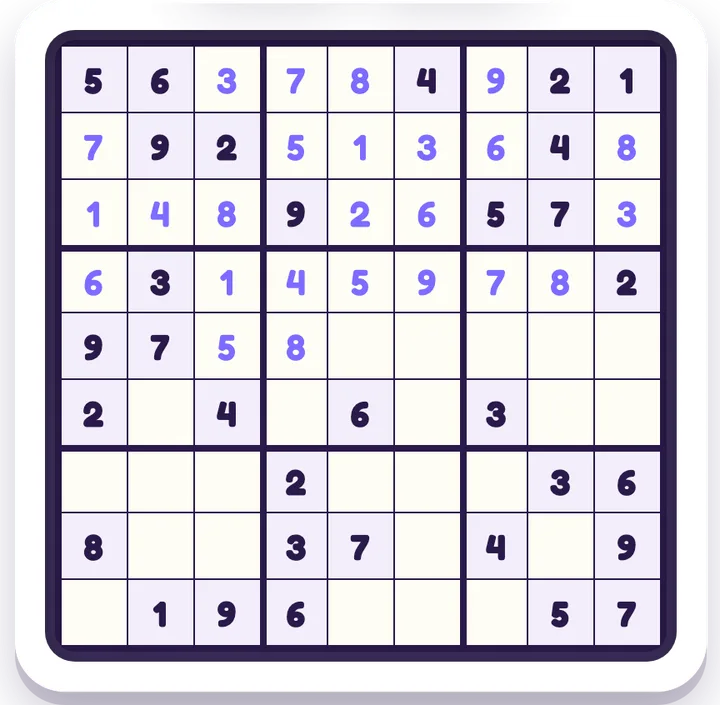
- Sudoku (8+) is number logic with almost no arithmetic, which makes it a confidence builder for students who dread sums.
- 2048 (8+) is doubling, powers of two and planning a move ahead.
- Domino Fit (6+) is a quieter surprise: some of the colored shapes carry a number, and the dots inside them must add up to exactly that, so students check sums to place every domino.
Sudoku and 2048 are in the math games hub; Domino Fit lives in the logic games hub.
Logic and problem-solving
Lights Out, Flow Connect, Crown Grid and Minesweeper all reward the same habit: stop, reason, then act. Every logic game has a Hint button that points to one next step rather than the whole answer, which makes them useful for modeling reasoning aloud, not just for practice. All but Minesweeper also have Watch-Solve, which plays the full solution step by step. The logic games hub has nine of them.
Geography and the world
Flag Guess (7+) runs from famous flags up to all 194 countries, and Globe Trek puts a spinning 3D globe in front of students and asks them to find each country. Both are in the geography hub, and the sports hub adds World Cup history games that sneak in map skills and timelines.
One honest note: Globe Trek, and Soccer Globe Hunt in the sports hub, need 3D graphics switched on in the browser, and some managed school Chromebooks have that turned off. If the globe won't appear, Flag Guess is a good stand-in that doesn't need it.
Memory, attention and the youngest learners
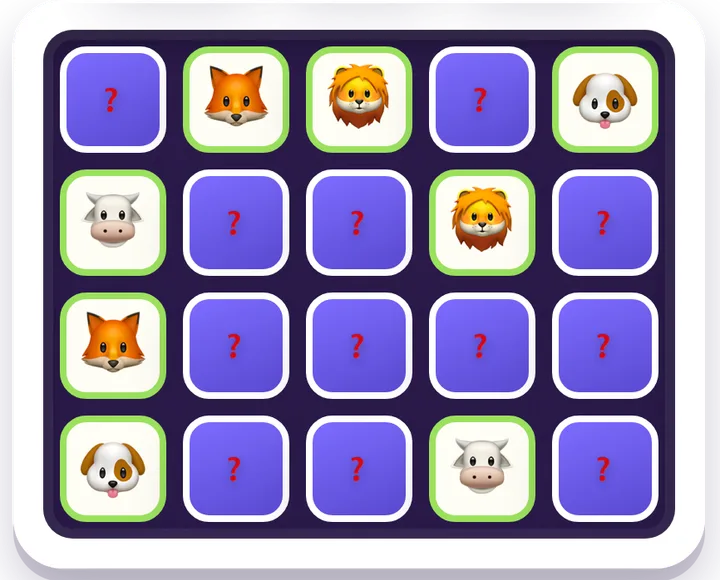
Memory Match (4+) and Simon (5+) are ideal for early years and for a two-minute focus reset between activities. They're in the memory games hub, and our new post on games that build memory and focus goes deeper.
Spatial reasoning and brain breaks
The puzzle hub has Slide Quest, the classic sliding-tile puzzle, and Block Puzzle for spatial planning. When the class has earned it, the arcade hub is there for a Friday-afternoon reward.
At a glance
| Subject | Start with | Youngest pick | Hub |
|---|---|---|---|
| Spelling & vocabulary | Word Search, Word Guess | 6+ | Word games |
| Math & number sense | Sudoku, 2048 | 8+ | Math games |
| Logic & problem-solving | Flow Connect, Domino Fit, Lights Out | 6+ | Logic games |
| Geography | Flag Guess, Globe Trek | 7+ | Geography |
| Memory & attention | Memory Match, Simon | 4+ | Memory games |
| Spatial reasoning | Slide Quest, Block Puzzle | 6+ | Puzzle games |
How to use it in a lesson
- Send one link, not a site. Every game has its own address, such as
iplay.free/en/games/sudoku. Paste it into your class page or write it on the board, and students land straight in the game. - Early finishers. Keep a standing link to one hub. Students who finish early have something worthwhile to do, and nobody has to set anything up.
- Stations. One table on Word Search, one on Flag Guess, one on Sudoku. Levels let each group work at its own pace.
- Whole class on the projector. Connections and Word Guess work brilliantly as a group puzzle. The best question in the room is "how do you know?"
- Model the reasoning. On a logic puzzle, press Hint and ask the class why that move must be right before anyone taps it. Save Watch-Solve for the end: it plays the whole solution quickly and can be stopped but not paused, and stopping it starts a fresh board. Then let students try the next board themselves.
- Mixed-language classes. Every game can be played in any of 12 languages, chosen from the menu, so a student who is newer to English can play in their own language alongside everyone else.
A ten-minute example
Here is one way a short vocabulary warm-up can run with Connections on the projector:
- Minute 0–1. Open the game on the board. No one logs in, so there is nothing to wait for.
- Minutes 1–6. Students call out groups of four and explain why the words belong together. You only tap a group in once someone has justified it.
- Minutes 6–8. When a guess is wrong, ask which word was the trap and why it seemed to fit. That discussion is where most of the vocabulary learning happens.
- Minutes 8–10. Students open the same link on their own devices and tap New Puzzle for a fresh set of 16 words (the link opens today's puzzle, the one you just solved together). The Relaxed level allows six mistakes if they want more room.
The same shape works for Sudoku (swap "why do these words belong together?" for "how do you know the 7 goes there?") and for Flag Guess as a quick geography starter.
A couple of practical points. The games run in any modern browser on Chromebooks, iPads, laptops and phones, and they are light on bandwidth, which helps when a whole class shares one Wi-Fi connection. On shared devices, saved progress belongs to the browser, not the student: if a class shares a cart of Chromebooks, the next student may find the last one's game in progress, and starting a new game is one tap.
Quick answers
Do students need an account or an email address? No. There are no accounts at all, for students or for teachers.
Is it really free? What's the catch? There isn't one. No ads, no subscriptions, no in-game purchases and no "premium" tier. It's a family-built project, and the whole catalog is open.
Does it work on Chromebooks and iPads? Yes. Everything runs in the browser, with nothing to install. The two to watch for are the 3D globe games, Globe Trek and Soccer Globe Hunt, which need 3D graphics enabled.
What data is collected about students? No names, emails or accounts. The site keeps running totals (plays per game and per month, plays per country, and likes per game). A like is stored with the random ID the browser made up, never with a name, and progress is saved only on the device. The privacy page has the full detail.
Can I send students straight to one game? Yes. Copy the game's address from the browser and share it. It opens directly, with no menu to navigate.
For more, the FAQ answers the common questions, and our posts on whether iplay.free is safe and free and screen-time-friendly games go further on the safety side. If you teach math, free games to practice math facts is a good next read.
Ready to try one with your class? Browse all free games →